Key takeaways
- How to choose a monitor by size, resolution, refresh rate and panel type, with five Amazon examples from a 24.5-inch esports screen to a 34-inch OLED.
Pick the wrong gaming monitor and even a strong graphics card feels wasted: frames pile up on a slow panel, text turns fuzzy on a low-resolution screen, or a huge display crowds a shallow desk. The good news is that the choice breaks down into four plain decisions — size, resolution, refresh rate and panel type — and each one follows from how and where you play.
This guide walks through those four decisions in order, then shows how they play out in five real monitors sold on Amazon: a compact 24.5-inch esports screen, two 27-inch models at different resolutions, a curved 32-inch option and a 34-inch ultrawide OLED. By the end, you can map your desk, your games and your graphics card to the screen that fits them.
As an Amazon Associate, we earn from qualifying purchases.
Quick answer
Begin with desk depth: 24.5 inches fits close competitive play, 27 inches is the all-round sweet spot, and 32 inches or an ultrawide needs a deeper desk. Match resolution to your graphics card, aim for 144Hz or above for fast games, then pick the panel: TN for raw speed, IPS for balance, OLED for contrast.
How to choose
Size and viewing distance. Screen size only works when it matches the gap between your eyes and the panel. At a typical desk distance of roughly an arm’s length, a 24.5-inch or 27-inch screen fills your view without forcing head movement, which is why those sizes dominate gaming desks. Step up to 32 inches and you want a deeper desk so the edges stay in comfortable view. Ultrawide screens such as a 34-inch 21:9 model trade height for width, so measure your desk width and leave room for speakers or a second screen before you commit.
Resolution. Resolution sets sharpness and workload at the same time. Full HD (1920 x 1080) is the easiest load and suits fast competitive play. QHD (2560 x 1440) is noticeably sharper and has become the mainstream step up for 27-inch and 32-inch screens. 4K UHD (3840 x 2160) gives the crispest image but asks far more of your graphics card, so pair it with a powerful GPU or accept lower frame rates. Ultrawide 3440 x 1440 sits between QHD and 4K in demand while adding side view in games that support it.
Refresh rate. Refresh rate, measured in hertz, is how many times the screen redraws each second. A 60Hz screen is fine for slow, cinematic games, but 144Hz or 165Hz makes motion far smoother and is the point where most players feel a clear jump. Competitive players push to 240Hz, where the gain is smaller but real in fast shooters. Whatever you pick, look for adaptive sync — G-SYNC Compatible or FreeSync — so the screen can match your frame rate and avoid tearing.
Panel type. TN panels are the speed specialists: very fast response, but color shifts when viewed from an angle and contrast is modest. IPS panels balance speed with accurate color and wide viewing angles, which makes them the safe all-round pick. VA panels deliver deeper contrast and often come curved. OLED panels light each pixel on its own, giving true blacks, rich color and near-instant response, with the trade-off that static images left on screen for long hours need a little care.
BenQ ZOWIE XL2546K

The ZOWIE XL2546K is what the size and speed lessons look like when nothing else matters. Its 24.5-inch screen is small on purpose: at close range the whole picture sits inside your central view, so you track movement without moving your head. The TN panel runs at 240Hz with a listed 1ms response, and BenQ adds DyAc+ to keep fast motion clear. Resolution stays at 1920 x 1080, which keeps frame rates high even on mid-range graphics cards. The smaller base frees desk space for a keyboard and mouse, and the stand adjusts for height and tilt. If your games are competitive shooters and your priority is motion clarity over pretty color, this is the template to copy.
Specs:
– Screen size: 24.5 inches
– Resolution: 1920 x 1080 (Full HD)
– Panel type: TN
– Refresh rate: 240Hz
– Response time: 1ms
– Motion clarity: DyAc+
– Inputs: 3 x HDMI 2.0, 1 x DisplayPort 1.2
LG UltraGear 27GP850-B
The 27GP850-B is the all-round answer most desks should copy. At 27 inches with a QHD 2560 x 1440 picture, it hits the balance point from the guide above: sharp enough for detailed games and desktop work, light enough that a mid-range graphics card can feed it well. The Nano IPS panel runs at 165Hz, so motion stays smooth while color and viewing angles stay strong — the classic IPS compromise in the best sense. It carries NVIDIA G-SYNC Compatible and AMD FreeSync Premium support, so either GPU camp gets tear-free play. The stand adjusts for tilt, height and pivot, which helps it fit shared desks and mixed work-and-play setups.
Specs:
– Screen size: 27 inches
– Resolution: 2560 x 1440 (QHD)
– Panel type: Nano IPS
– Refresh rate: 165Hz
– Response time: 1ms (GtG)
– Adaptive sync: NVIDIA G-SYNC Compatible, AMD FreeSync Premium
– Stand: tilt, height and pivot adjustable
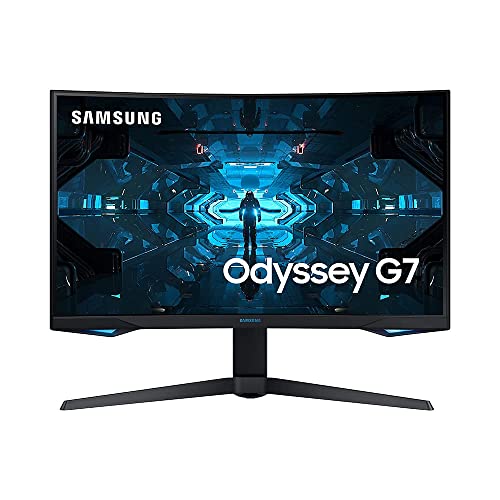
Samsung Odyssey G7
The Odyssey G7 shows what changes when you go bigger and curved. The panel measures 31.5 inches in the product details and wraps around a 1000R curve, which pulls the edges of the QHD 2560 x 1440 picture closer to your eyes and fills more of your view. That size needs a deeper desk, exactly as the size lesson warns. Speed is not sacrificed for size: the listing gives a 240Hz refresh rate and 1ms response, with G-Sync and FreeSync Premium Pro support. The QLED display aims for vivid color alongside the curve. Choose this shape if you play immersive racers, flight games or open-world titles and your desk can give it room.
Specs:
– Screen size: 31.5 inches
– Resolution: 2560 x 1440 (WQHD)
– Display: Curved QLED, 1000R curve
– Refresh rate: 240Hz
– Response time: 1ms
– Adaptive sync: G-Sync, FreeSync Premium Pro
– Model: LC32G75TQSNXZA
LG UltraGear 27GR93U
The 27GR93U keeps the popular 27-inch footprint but swaps the resolution decision: this is the 4K option. Its IPS panel runs 3840 x 2160 at 144Hz, so you get the sharpest picture in this guide while keeping a genuinely fast refresh rate. That combination is demanding — plan on a strong graphics card to hold high frame rates at 4K, or lower some game settings. HDMI 2.1 connections also make it a natural fit for a desk shared with a current console. With G-SYNC Compatible and FreeSync Premium support plus VESA DisplayHDR 400, it suits players who split time between detailed single-player games, creative work and fast titles.
Specs:
– Screen size: 27 inches
– Resolution: 3840 x 2160 (4K UHD)
– Panel type: IPS
– Refresh rate: 144Hz
– Response time: 1ms (GtG)
– HDR: VESA DisplayHDR 400
– Adaptive sync: G-SYNC Compatible, AMD FreeSync Premium
Alienware AW3423DWF

The AW3423DWF is the ultrawide and OLED lesson in one product. The 34-inch QD-OLED panel stretches to 3440 x 1440 in a wide 21:9 shape with an 1800R curve, so games wrap around your view in a way a standard screen cannot match. OLED brings the contrast advantage described above: the listing cites VESA DisplayHDR True Black 400 and 99.3 percent DCI-P3 color coverage, and response is a listed 0.1ms. Refresh rate is 165Hz over DisplayPort and 100Hz over HDMI, with AMD FreeSync Premium Pro. Pick it if immersion and picture quality lead your list and your desk is wide enough — and vary your content, as with any OLED.
Specs:
– Screen size: 34 inches
– Resolution: 3440 x 1440 (WQHD, 21:9)
– Panel type: QD-OLED
– Refresh rate: 165Hz via DisplayPort, 100Hz via HDMI
– Response time: 0.1ms
– Curve: 1800R
– Adaptive sync: AMD FreeSync Premium Pro
Who should skip
Skip the upgrade for now if your graphics card already struggles to hold smooth frame rates at your current resolution — a bigger or sharper screen will only make that worse, so upgrade the GPU first. Skip it if you play almost everything from a sofa on a TV, where a desk monitor adds little. Skip the larger and ultrawide shapes if your desk is shallow or narrow, and skip a 240Hz esports screen if you mainly play slow strategy or story games, where that speed goes unused. Finally, skip OLED if your screen shows the same static desktop or HUD elements for many hours a day, every day.
FAQ
Is 27 inches big enough for 4K gaming?
Yes. At 27 inches, 3840 x 2160 packs pixels tightly, so games and text look very sharp at a normal desk distance. The real question is your graphics card: 4K at 144Hz needs strong hardware, so a 27-inch QHD screen is the wiser pick for mid-range systems.
How much refresh rate do I actually need?
For most players, 144Hz to 165Hz is the sweet spot — the step up from 60Hz is large and easy to feel. Move to 240Hz if you play competitive shooters and your PC can push frame rates that high. Above that, gains shrink and fewer games benefit.
TN, IPS or OLED: which panel should I pick?
Pick TN if competitive speed is everything and you accept weaker color from angles. Pick IPS for the balanced route: good speed, accurate color and wide angles for mixed gaming and work. Pick OLED for the strongest contrast and response, if you vary what is on screen and accept the extra care.
Does an ultrawide replace a dual-monitor setup?
For gaming, a 34-inch ultrawide gives one unbroken wide view that two screens cannot match, and many games support the 21:9 shape. For heavy multitasking, two separate screens still win on window management. Check that your favorite games support ultrawide before you switch.
Final verdict
Choosing a gaming monitor is four linked decisions: size from your desk depth, resolution from your graphics card, refresh rate from your games, and panel from your priorities. The five examples map cleanly onto those choices — the ZOWIE for close-range speed, the 27GP850-B as the balanced QHD default, the Odyssey G7 for a big curved picture, the 27GR93U for 4K sharpness at 27 inches, and the AW3423DWF for ultrawide OLED immersion. Measure your desk, be honest about your GPU, and the right screen picks itself.